Password Security - Common Mistakes and How to Avoid Them
Discover the most common password mistakes that put your accounts at risk. Learn how to create strong passwords, avoid dangerous patterns, and protect yourself from cyberattacks with practical tips and real-world examples.
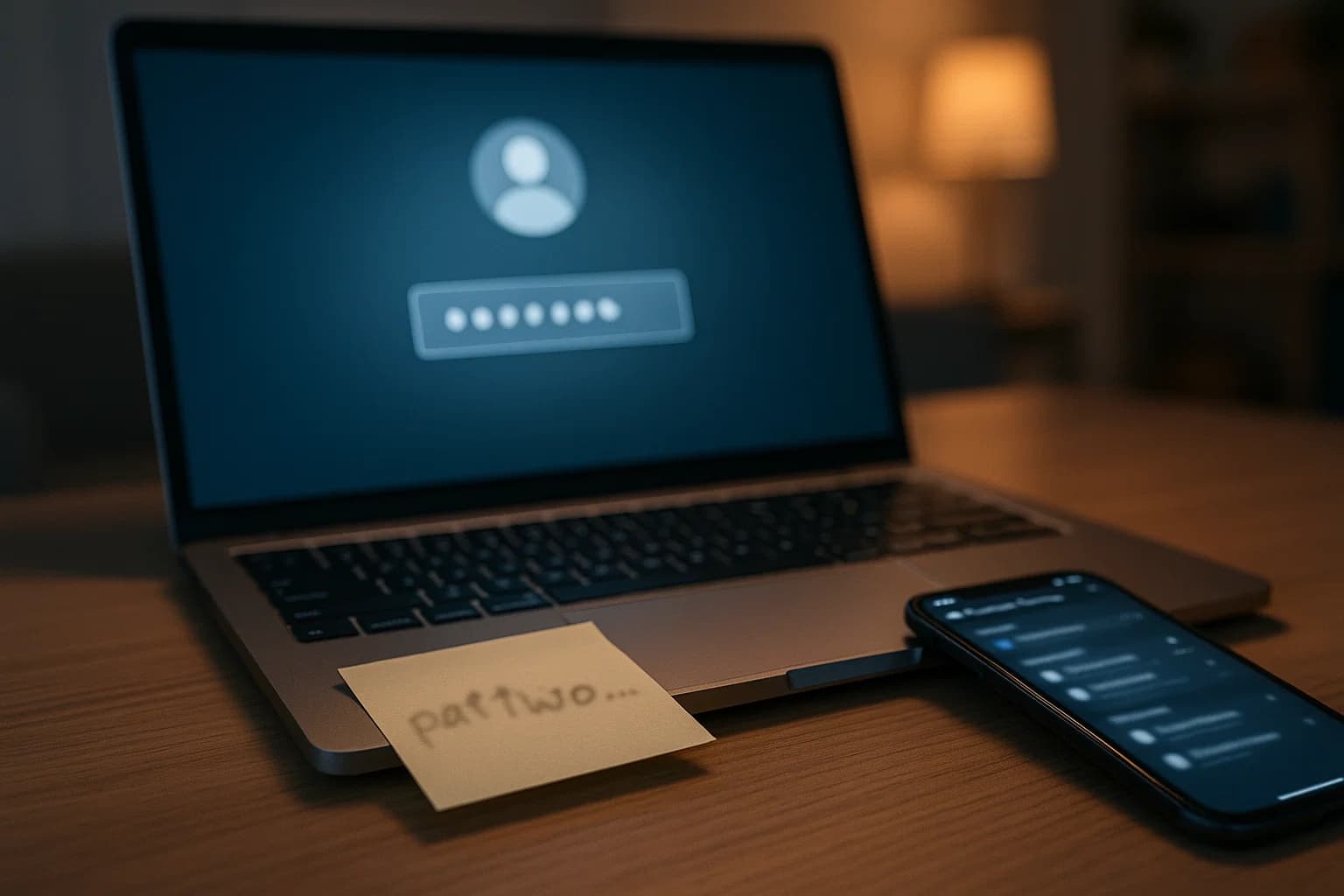
Sarah thought her password was secure. After all, it had 12 characters, included her dog's name, and even had a number at the end. "Fluffy2024!" seemed strong enough. But when she received an email notification about a suspicious login from Russia, she realized her mistake.
The problem? Sarah used the same password for her email, social media, and even her bank account. When one of those accounts was breached (she never found out which one), cybercriminals had access to everything.
Sarah's story is far from unique. According to recent cybersecurity studies, 81% of data breaches involve weak or stolen passwords. Even worse, 65% of people reuse passwords across multiple accounts, creating a domino effect when one account is compromised.
The good news? Most password mistakes are easily avoidable. In this guide, we'll walk through the most common password security mistakes and show you exactly how to fix them – no technical expertise required.
The 7 Deadly Password Mistakes (And How to Fix Them)
Mistake #1: Using the Same Password Everywhere
The Problem:
You have 50+ online accounts. Remembering unique passwords for each seems impossible, so you use the same one (or slight variations) everywhere. When one account gets breached, cybercriminals try that password on hundreds of other sites.
Real-World Impact:
- LinkedIn breach (2021): 700 million users affected. Cybercriminals immediately tried those passwords on Gmail, Facebook, and banking sites.
- Average accounts compromised: When one password leaks, attackers successfully access 3-5 additional accounts on average.
The Fix:
✅ Use a password manager – Tools like 1Password, LastPass, or Bitwarden generate and store unique passwords for every account. You only need to remember one master password.
✅ Create password variations (if you must do it manually) – Use a base password and add site-specific elements. Example: BasePass123! + FB for Facebook = BasePass123!FB
✅ Prioritize unique passwords for critical accounts – At minimum, use unique passwords for: email, banking, social media, and work accounts.
Mistake #2: Using Weak, Predictable Passwords
The Problem:
Passwords like password123, qwerty, or 12345678 are still among the most common passwords in 2025. They can be cracked in seconds by automated tools.
The Most Hacked Passwords of 2025:
123456– Cracked in 0.001 secondspassword– Cracked in 0.002 seconds123456789– Cracked in 0.001 secondsqwerty– Cracked in 0.003 secondsabc123– Cracked in 0.001 seconds
Real-World Impact:
- Brute force attacks can try millions of password combinations per second
- Dictionary attacks test common words and phrases
- Credential stuffing uses leaked passwords from previous breaches
The Fix:
✅ Use long, complex passwords – Minimum 12 characters (16+ is better)
✅ Mix character types – Uppercase, lowercase, numbers, symbols
✅ Avoid dictionary words – Don't use real words that can be found in a dictionary
✅ Use passphrases – Instead of Dog123!, use MyDogLovesChasingSquirrels!2024 (longer and harder to crack)
Example of a strong password:
Weak: Fluffy2024!
Strong: FluffyChasesSquirrels@Park2024!
Mistake #3: Including Personal Information
The Problem:
Using your name, birthday, pet's name, or other personal information makes passwords easier to remember – and easier to guess. Social media makes this information publicly available.
Common Personal Information in Passwords:
- Your name or family members' names
- Birthdays or anniversaries
- Pet names
- Addresses or phone numbers
- Favorite sports teams or hobbies
Real-World Impact:
- Social engineering – Attackers gather information from your Facebook, LinkedIn, or Instagram
- Targeted attacks – Someone who knows you can easily guess your password
- Data breaches – When personal info leaks, it's used to crack passwords
The Fix:
✅ Avoid all personal information – Don't use anything that can be found on your social media
✅ Use random combinations – Let a password manager generate truly random passwords
✅ If you must use personal info – Scramble it completely. Fluffy becomes YfFulL (not recommended, but better than the original)
Mistake #4: Never Changing Passwords
The Problem:
You set a password in 2018 and haven't changed it since. Even if it was strong then, it might have been leaked in a breach you don't know about.
The Reality:
- 287 days – Average time to detect a data breach without professional monitoring
- 60% of breaches end up on the Dark Web within 24 hours
- You might not know your password was compromised for months or years
The Fix:
✅ Change passwords after a breach – If a service you use reports a breach, change your password immediately ✅ Regular rotation for critical accounts – Change passwords for email, banking, and work accounts every 6-12 months ✅ Use breach monitoring – Privaro monitors data breaches 24/7 and notifies you within 24 hours if your data appears in a leak ✅ Check if you've been breached – Generate a free report on Privaro to see if your email has appeared in any known breaches
Mistake #5: Writing Passwords Down (The Wrong Way)
The Problem:
You write passwords on sticky notes, in notebooks, or in unencrypted files on your computer. If someone finds them, you're compromised.
Where People Store Passwords (Dangerously):
- Sticky notes on monitors
- Notebooks in desk drawers
- Text files on computers (
passwords.txt) - Notes apps on phones (without encryption)
- Emails to yourself
Real-World Impact:
- Physical theft – Someone steals your notebook or sees your sticky note
- Digital theft – Malware can read unencrypted password files
- Social engineering – Attackers trick you into revealing where you store passwords
The Fix:
✅ Use a password manager – Encrypted, secure storage for all passwords ✅ If you must write them down – Store in a locked safe, use code words, and never label it "passwords" ✅ Never store passwords in plain text – Always use encryption ✅ Enable 2FA – Even if someone gets your password, they can't access your account
Mistake #6: Sharing Passwords
The Problem:
You share your Netflix password with family, your work password with a colleague, or your email password with a partner. Each person who knows your password is a potential security risk.
Common Password Sharing Scenarios:
- Streaming services (Netflix, Spotify)
- Work accounts (for "convenience")
- Email accounts (with partners)
- Social media (managing business pages)
Real-World Impact:
- Unintended access – If someone you shared with gets hacked, your account is compromised
- No accountability – You can't track who accessed what
- Compliance issues – Sharing work passwords violates security policies
The Fix:
✅ Use separate accounts – Each person should have their own account when possible ✅ Use secure sharing features – Password managers have secure sharing features ✅ Never share critical passwords – Email, banking, and work passwords should never be shared ✅ Use guest accounts – For services like Netflix, use guest profiles instead of sharing passwords ✅ Change passwords after sharing – If you must share, change the password immediately after
Mistake #7: Not Using Two-Factor Authentication (2FA)
The Problem:
You rely solely on passwords for security. If someone steals your password (through a breach, phishing, or malware), they have full access to your account.
The Reality:
- 91% of cyberattacks start with phishing or stolen credentials
- Even strong passwords can be stolen through data breaches
- 2FA blocks 99.9% of automated attacks even if your password is compromised
The Fix:
✅ Enable 2FA everywhere – Email, banking, social media, work accounts ✅ Use authenticator apps – Google Authenticator, Authy, or Microsoft Authenticator (more secure than SMS) ✅ Backup codes – Save backup codes in a secure location ✅ Hardware keys – For maximum security, use physical security keys (YubiKey)
How 2FA Works:
- You enter your password (something you know)
- You provide a second factor (something you have – your phone, or something you are – your fingerprint)
- Even if someone has your password, they can't access your account without the second factor
How to Create Strong Passwords: The Right Way
Method 1: Use a Password Manager (Recommended)
Why password managers are the best solution:
- ✅ Generate truly random, strong passwords
- ✅ Store passwords securely (encrypted)
- ✅ Auto-fill passwords (only on legitimate sites)
- ✅ Sync across all your devices
- ✅ Alert you to compromised passwords
Best Password Managers (2025):
- 1Password – User-friendly, excellent security, $2.99/month
- LastPass – Popular, free tier available, $3/month for premium
- Bitwarden – Open-source, free tier, $3/month for premium
- Dashlane – Good features, $4.99/month
Getting Started:
- Choose a password manager
- Create a strong master password (this is the only one you need to remember)
- Import your existing passwords
- Let the manager generate new passwords for all accounts
- Enable 2FA on your password manager account
Method 2: Create Passphrases (If Not Using a Manager)
What is a passphrase?
Instead of a single word with numbers, use a sentence or phrase that's easy to remember but hard to crack.
How to create a strong passphrase:
- Choose 4-6 random words – Unrelated words work best
- Add numbers and symbols – Mix them in naturally
- Make it at least 16 characters – Longer is better
- Use spaces or special characters – Between words
Examples:
Weak: Password123!
Strong: Coffee!Mountain@Sunset2024
Stronger: MyFavoriteCoffeeIs@Starbucks2024!
Passphrase Generator Formula:
- 4 random words + 2 numbers + 2 symbols = Strong, memorable password
Method 3: Use Password Patterns (Advanced)
Only use this if you can't use a password manager:
Create a pattern that's unique to you but not obvious to others.
Example Pattern:
- Base:
Tr!ck2024 - Add site identifier:
Tr!ck2024FB(Facebook),Tr!ck2024GM(Gmail) - Never use the same base for critical accounts
⚠️ Warning: This is less secure than a password manager. Use only as a last resort.
Password Security Checklist
✅ For Every Account:
- Password is at least 12 characters (16+ for critical accounts)
- Contains uppercase, lowercase, numbers, and symbols
- Doesn't contain personal information
- Is unique (not reused anywhere else)
- Stored securely (password manager or encrypted)
- 2FA is enabled (if available)
✅ For Critical Accounts (Email, Banking, Work):
- Password is 16+ characters
- Generated by password manager (truly random)
- 2FA enabled (preferably authenticator app, not SMS)
- Changed immediately after any breach notification
- Never shared with anyone
- Monitored for breaches (Privaro 24/7 monitoring)
✅ Regular Maintenance:
- Check for breaches quarterly (Free report on Privaro)
- Update passwords after breaches
- Review password manager security annually
- Update 2FA backup codes
- Remove unused accounts
What to Do If Your Password Is Compromised
Immediate Actions (Within 24 Hours)
1. Change the Password Immediately
- Log into the compromised account
- Change to a strong, unique password
- Don't reuse the old password anywhere
2. Change Passwords on Other Accounts
- If you reused that password, change it everywhere
- Start with critical accounts (email, banking, social media)
- Use a password manager to track which accounts need updating
3. Enable 2FA
- If 2FA wasn't enabled, enable it now
- Use an authenticator app (more secure than SMS)
- Save backup codes securely
4. Check Account Activity
- Review login history for suspicious activity
- Check for unauthorized changes (email, phone number, recovery questions)
- Review transactions (banking, credit cards)
5. Contact the Service
- Report the breach to the service provider
- Ask them to log out all devices
- Request a security review
Within a Week
6. Check All Accounts for Breaches
- Generate a free breach report on Privaro
- Check all email addresses you use
- Review which services were affected
7. Enable Professional Monitoring
- Privaro offers 24/7 breach monitoring
- Get notified within 24 hours if your data appears in new breaches
- Detailed reports on all detected breaches
8. Review Security Settings
- Update security questions (use answers that aren't guessable)
- Review recovery email addresses and phone numbers
- Remove old, unused accounts
9. Monitor Financial Accounts
- Check bank statements for unauthorized transactions
- Review credit reports
- Set up transaction alerts
- Consider freezing credit if identity theft is suspected
Advanced Password Security Tips
For Maximum Security
1. Use Hardware Security Keys
- Physical devices (like YubiKey) for 2FA
- Most secure form of authentication
- Works with major services (Google, Microsoft, Facebook, etc.)
2. Enable Advanced 2FA Options
- Biometric authentication (fingerprint, face ID)
- Hardware keys (most secure)
- Authenticator apps (more secure than SMS)
3. Use Separate Email for Critical Accounts
- Create a dedicated email for banking and important accounts
- Don't use this email for social media or shopping
- Reduces risk of phishing and credential stuffing
4. Regular Security Audits
- Review all accounts quarterly
- Remove unused accounts
- Update passwords for critical accounts
- Check breach reports regularly
5. Educate Yourself
- Stay updated on new threats
- Learn about phishing and social engineering
- Understand how data breaches happen
Common Password Myths Debunked
Myth #1: "Complex passwords are always better"
Reality: Length matters more than complexity. MyDogLovesChasingSquirrels! is stronger than P@ssw0rd! even though the second has more special characters.
Myth #2: "I need to change my password every 90 days"
Reality: Frequent password changes lead to weaker passwords (people use patterns like Password1, Password2, etc.). Change passwords after breaches, not on a schedule.
Myth #3: "Password managers aren't safe"
Reality: Password managers use military-grade encryption. They're far safer than reusing passwords or writing them down. The risk of a password manager being hacked is much lower than the risk of password reuse.
Myth #4: "I don't need 2FA if my password is strong"
Reality: Even strong passwords can be stolen through breaches, phishing, or malware. 2FA adds a critical second layer of protection.
Myth #5: "I'm not important enough to be hacked"
Reality: Most attacks are automated. Cybercriminals don't target individuals – they target weak passwords. If your password is weak or reused, you're at risk.
Tools and Resources
Password Security Tools
1. Password Managers:
- 1Password – 1password.com
- LastPass – lastpass.com
- Bitwarden – bitwarden.com
- Dashlane – dashlane.com
2. Password Strength Checkers:
- Use your password manager's built-in strength meter
- Avoid online checkers (they may store your passwords)
3. Breach Monitoring:
- Privaro – Free breach check – Check if your email has been compromised
- Privaro – 24/7 Monitoring – Professional breach monitoring with 24-hour alerts
4. 2FA Apps:
- Google Authenticator – iOS | Android
- Authy – authy.com
- Microsoft Authenticator – microsoft.com/authenticator
Don't Wait – Secure Your Passwords Today
Sarah's story could have been prevented. If she had used unique passwords and enabled 2FA, the breach of one account wouldn't have compromised everything. You don't have to be a cybersecurity expert to protect yourself – you just need to avoid these common mistakes.
Remember:
- 81% of data breaches involve weak or stolen passwords
- 65% of people reuse passwords (creating a domino effect)
- 287 days – average time to detect a breach without monitoring
- 24 hours – time to detect with Privaro monitoring
Take action now:
-
Check if your passwords have been compromised – Generate a free report on Privaro. It takes less than 10 seconds.
-
Start using a password manager – Choose one from the list above and migrate your passwords today. It's easier than you think.
-
Enable 2FA on critical accounts – Email, banking, and social media. It takes 5 minutes per account and dramatically improves security.
-
Enable professional monitoring – Privaro offers 24/7 breach monitoring. Get notified within 24 hours if your data appears in new breaches, instead of waiting 287 days.
Your password security is in your hands. Don't wait until it's too late. Start securing your accounts today.
Remember: Strong passwords are just one part of cybersecurity. Combine them with 2FA, breach monitoring, and good security habits for comprehensive protection. One weak password can compromise everything – make sure yours are strong.
This article was created by the Privaro team – experts in data protection and cybersecurity.
Related posts
Dark Web Explained - Why Your Data Might Be There?
Learn what the Dark Web is, how it works, and why your personal data might end up there. A practical guide to the darkest side of the internet.
GDPR and Data Breaches - What Are Your Rights as a Consumer?
Learn what rights you have as a consumer in case of data breach according to GDPR. How to report breaches, claim compensation, and protect your data.
How to Protect Your Data Online - Comprehensive Guide 2025
Learn how to effectively protect your personal data from breaches, cyberattacks, and identity theft. Practical tips and best security practices.